
Support
Help with Blink for Microsoft 365 and Google Workspace.
Getting started
Blink pulls reports and transactions from your accounting system into the spreadsheets, documents and presentations your team already uses. It runs inside Excel, Word and PowerPoint, and inside Google Sheets, Docs and Slides, so your work stays in your own files.
Blink connects to Xero and QuickBooks Online. A Blink account and a connected accounting system are needed before your first pull.
Get started with Blink (Microsoft 365)
Choose an app and it opens with Blink installed and ready to go. Sign in with your work Microsoft account when prompted. Each button adds Blink to that app, so click each one you plan to use.
Managing Microsoft 365 for your organization? Deploy Blink for everyone from the admin center instead.
If a button reports that add-ins are blocked, your organization manages them centrally: ask your IT admin to deploy Blink for you. Prefer the store page? View Blink on the Microsoft marketplace.
Or add it from inside Excel
Already in a workbook? It takes about a minute, and the same steps work in Word and PowerPoint.
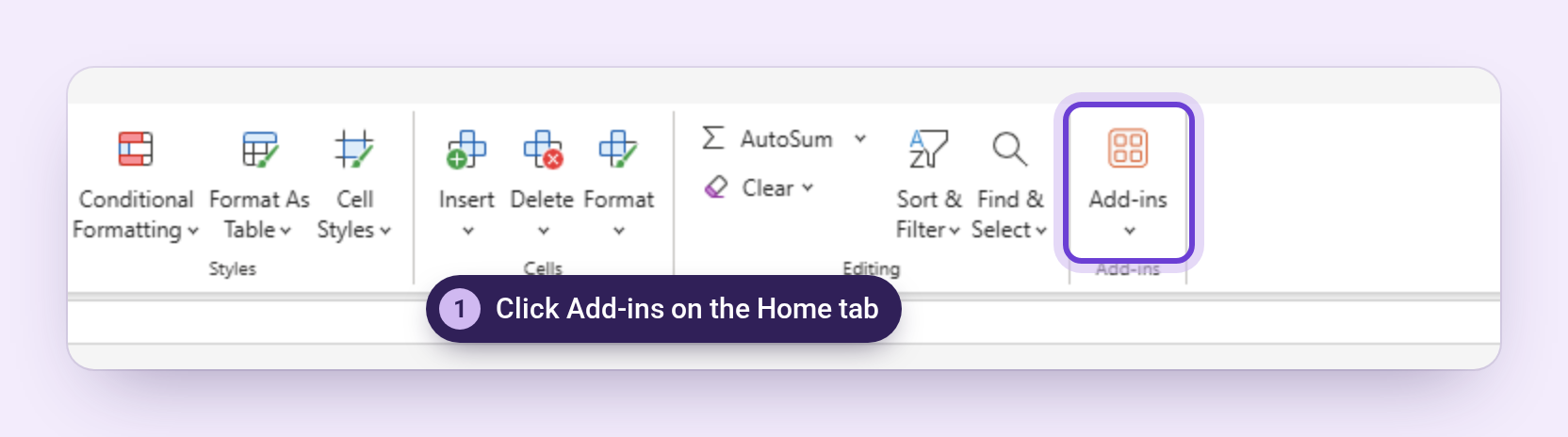
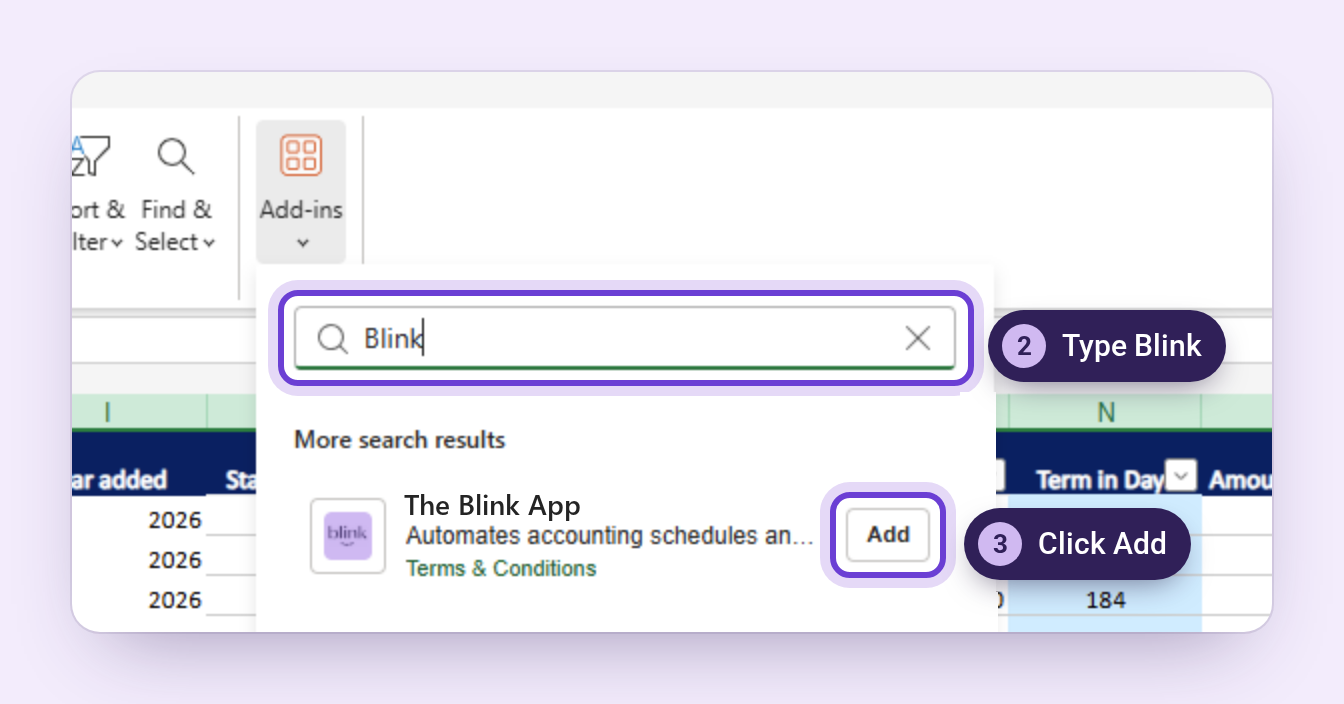
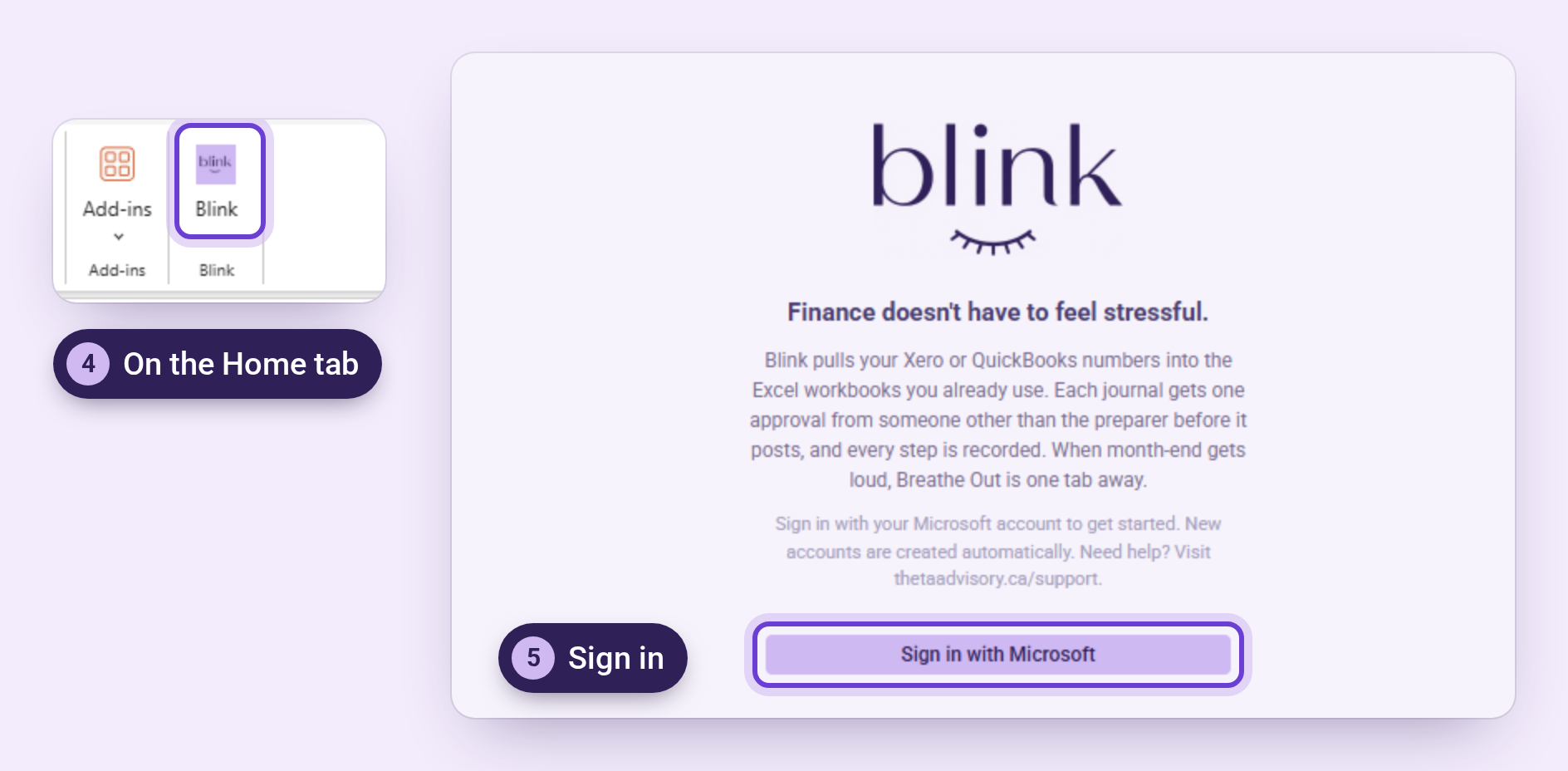
Installing Blink
Using Blink yourself? The Open in Excel, Word and PowerPoint buttons above are the quickest way in, or add it from inside Excel.
For IT admins: deploy to your organization
Admins can add Blink once for the whole organization, or for chosen users and groups, from Integrated apps in the Microsoft 365 admin center. It then appears in Excel, Word and PowerPoint for those users without them installing anything.
- In the Microsoft 365 admin center, go to Settings → Integrated apps → Get apps.
- Search for Blink, choose it, and choose who should get it.
- Review and deploy. It can take a few hours to appear for everyone.
Common questions
Using Blink in Google Sheets, Docs or Slides
Blink for Google Workspace pulls reports and transactions from Xero or QuickBooks Online into Google Sheets, Docs and Slides.
Open Extensions → The Blink App → Open Blink in the file where Blink is installed, then sign in with Google.
Blink for Google Workspace is a separate product from Blink for Microsoft 365, with its own free trial and subscription, which you start from the Billing tab in the Google sidebar.
For help with report pulls, refreshing a table or opening the sidebar, contact us and include which Google app you are using and the error message. Please do not email passwords, access tokens or client files.
Which Microsoft 365 plans are supported?
Any Microsoft 365 plan that includes Excel, Word and PowerPoint with add-in support — Apps for Business, Apps for Enterprise, Business Standard, Business Premium, and E3 or E5.
Business Basic includes the web versions of the Office apps only. Blink runs there, but features that depend on the desktop apps will not be available.
Blink uses recent Office add-in APIs, so it needs a current Microsoft 365 build. Perpetual licences such as Office 2019 and 2021 are not supported.
Which accounting systems can Blink post to?
Xero and QuickBooks Online. Each connection is authorised by you through the vendor’s own sign-in, and can be revoked from either side at any time. Blink never stores your Xero or QuickBooks password — only an encrypted access token.
How does the approval workflow work?
A preparer submits from Excel. An approver reviews it and approves or rejects it from the Approvals tab. Blink posts only approved journals. A user with the approver role cannot approve a journal they prepared; a user with the administrator role can, and the approval records who performed it either way.
A rejected journal returns to the preparer with the reviewer’s comment attached, and the rejection stays in the audit trail.
I cannot sign in. What should I check?
Blink signs in through a browser pop-up, so first check that pop-ups are not blocked. On desktop, close and reopen the task pane and try again.
If your organization uses single sign-on and the pop-up closes without signing you in, ask your Microsoft 365 administrator whether Blink has been granted consent. Email us and we will tell you exactly which permission is missing.
My numbers look stale. How do I refresh them?
Values pulled from your accounting system are captured when you pull them, not live. Use Refresh in the panel you pulled from to fetch current figures. A journal that references a stale value is flagged before it can be submitted.
How do I remove the add-in?
Go to Insert → Add-ins → My Add-ins, find Blink, open the three-dot menu and choose Remove. In Excel on the web, use Home → Add-ins → Manage My Add-ins. Removing the add-in does not delete your data — email us if you want your account closed and your data erased.
How do I cancel my subscription?
Cancel at any time from the Billing panel in Blink. Microsoft 365 and Google Workspace are separate subscriptions, so you can cancel one without affecting the other. Cancellation takes effect at the end of the current billing period. After that, new report pulls, refreshes, posting, approving and certifying stop for the cancelled product, and you keep access to your existing files, record exports and Breathe Out.
Contact us
Questions, problems, or a request for your data — write to us directly.